Seedance 2.5 Prompt Guide
Seedance 2.5 makes videos up to 30 seconds long, with sound, speech and music, in one shot. You do not need special keywords or prompt tricks. You direct it the way you would brief a friend holding a camera: say who is in the frame, what they do, where they are, and how it should feel. This page collects the habits that reliably make clips better. We tested every one of them on real generations. Everything here is specific to Seedance 2.5: timestamps, reference limits and editing behave differently on other video models, including Seedance 2.0. For those, a plain descriptive prompt is the right approach; see the video generation reference for what each model supports.
The basic recipe
Four ingredients, in plain sentences: who or what, doing what, where, and how it looks (camera and light). One clear idea per clip beats five ideas fighting each other.
A tea vendor pours karak chai between two glasses #60a5fa]">in an old Deira alley at sunset. Steam rises. The camera slowly pushes in. Warm golden light.Short prompts work, but vague ones do not. "A nice city video" gives the model nothing to hold on to. "Rain on a car window at night, neon signs blurred behind the glass" gives it everything.
Make characters speak
Put the spoken line in "quotes" and the character says it out loud, lip-synced. The language of the line is the language they speak. Arabic works natively, written right in the prompt. If you do not want captions burned into the frame, end the prompt with No subtitles.
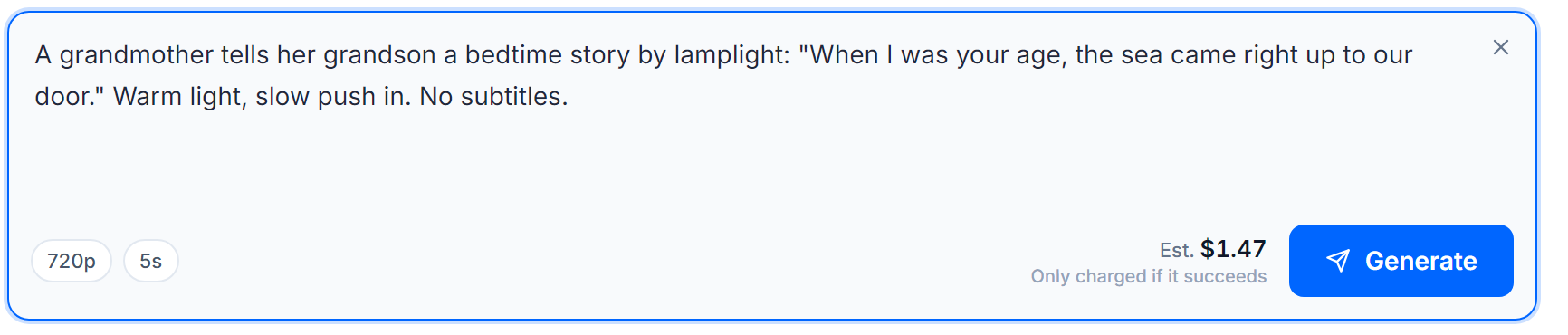
Direct by the second
For longer clips, write a timeline instead of one sentence. Use whole seconds, keep the segments continuous, and match the total to the clip length you picked. You can also write it as a moment: "at the 5 second mark, she turns around."
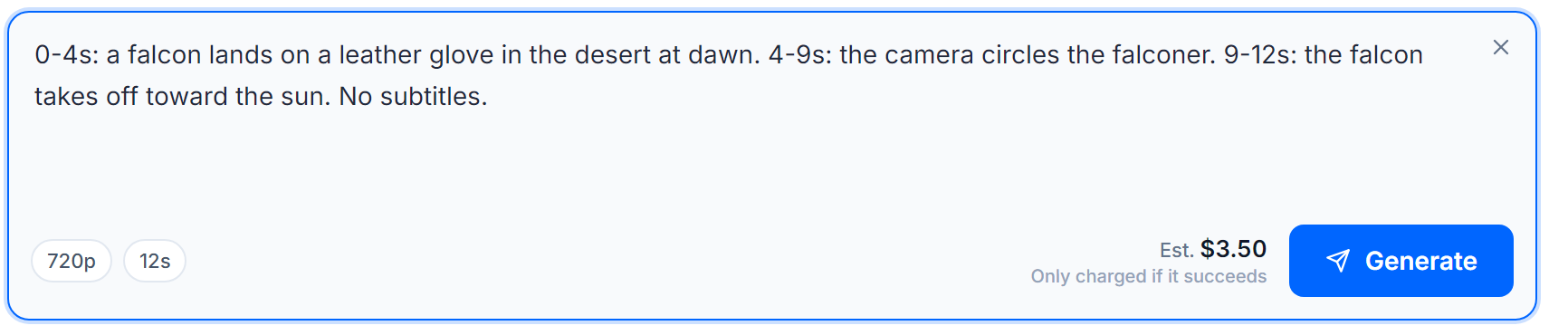
Timestamps are for pacing and story beats, not for very fast action. Anything quicker than about a second is better described in words ("she snatches the falling cup").
Cast the character, do not label the accent
This is the single most useful thing we learned testing Arabic speech. Writing "speaks in Egyptian dialect" does very little. Making the speaker be Egyptian does everything: describe the person, the place, and give them a line long enough for the accent to show.
A warm Egyptian man #60a5fa]">in his seventies, deep raspy voice, sits in a Cairo coffeehouse and says slowly: class="text-emerald-400">"يا سلام على أيام زمان، كان الحي كله يتجمع هنا كل ليلة". No subtitles.The same trick controls the voice itself: "in his seventies, deep, raspy, speaks slowly" produces an audibly older voice than the default. Cast age, energy and texture the way a casting director would, in the character description.
Bring your own files
Reference mode accepts up to 30 images, 10 clips and 10 audio files in one request. Type @ in the prompt to mention a file by name: a file called sarah.png becomes @sarah. The important habit: tell the model what each file is for, in the sentence itself.
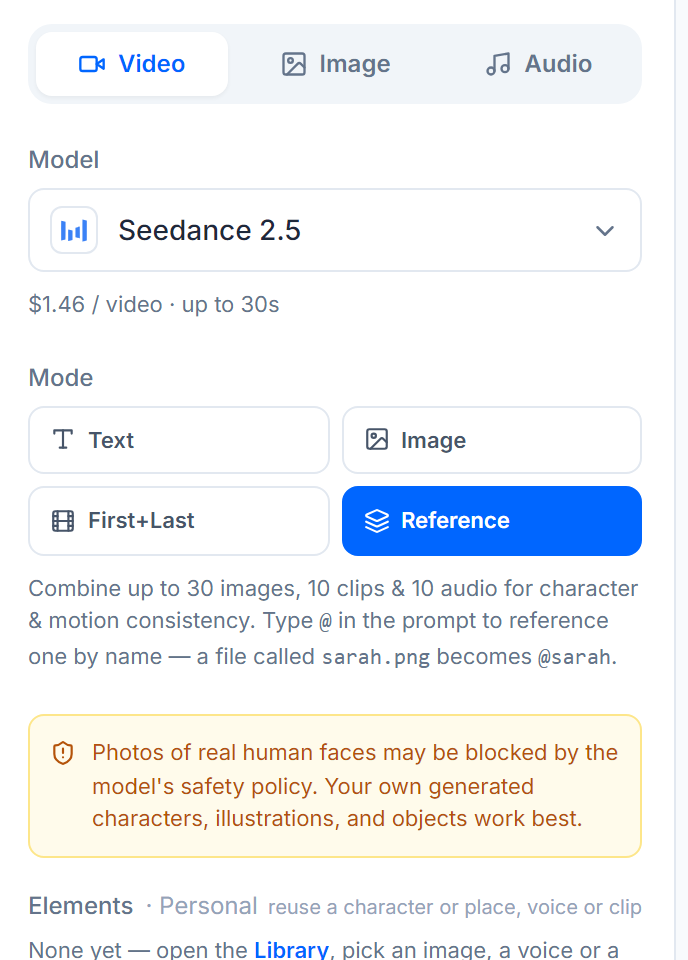
The knight #60a5fa]">from @knight walks through the courtyard from @castle. Use @palette for the colours and lighting. The dog from @dog runs ahead of him.The caps are generous, but the sweet spots are smaller. These are the ranges that produce the most faithful results:
| What | Best | Still works, quality drops |
|---|---|---|
| Characters or subjects per request | 1 to 5 | 6 to 10 |
| Images per subject | 1 to 8 | 9 to 12 |
| Length of each reference clip or audio | 5 to 10 seconds | longer |
| Source video when editing | under 20 seconds | longer |
Edit a video with words
Any clip can be edited by describing the change: clips you generated (click Edit this video on the result or in your Library) and clips you upload from your device. Use change words like replace, change, add or remove, and say what should stay the same. The new clip keeps the length and shape of the original automatically.
In @Video 1, replace the fighter's armour with a red ballroom dress. Keep everything #60a5fa]">else the same: the arena, the crowd, the camera.To continue a clip instead of changing it, attach it and use continue or extend. You get the continuation as a new clip.
What to know before you generate
- Clips run 4 to 30 seconds at 480p or 720p. The price is shown before you generate and scales with length and resolution. 480p is a good drafting resolution: same model, roughly half the price.
- Only two "do not" instructions actually work:
No subtitlesand audio control (no background music,only environmental sounds). General negative prompts like "no blur, no distortion" do nothing. Describe what you want instead. - Photos of real human faces may be declined by the model's safety policy. Characters you generated, illustrations and objects work best.
- The safety review can also decline prompts or files that resemble famous characters, celebrities or copyrighted material, even in your own uploads. If that happens, reword toward your own distinct character and try again.
You never pay for a failed clip. If a generation is declined or fails for any reason, the full amount returns to your balance automatically within seconds.
Try it now. Everything on this page works today in Thalam Studio. Building with the API instead? The same model and inputs are available through the video generation endpoint.